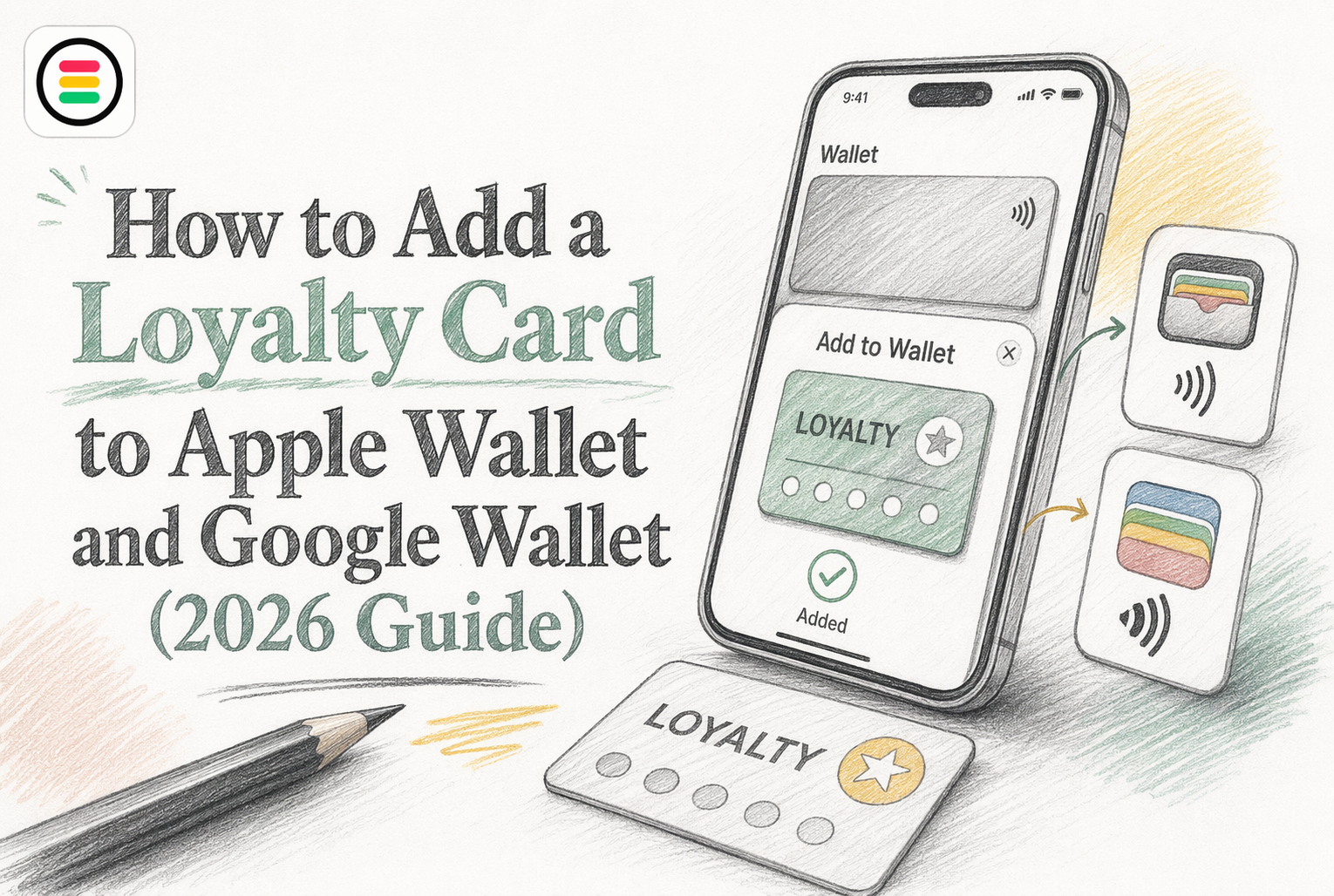
Quick Summary: You can add loyalty cards to Apple Wallet and Google Wallet easily if the merchant provides a direct link or QR code. For iPhone users, just tap "Add to Wallet" from an email, website, or QR code, and confirm. Android users can do the same with Google Wallet by opening the link or scanning the QR code. Businesses should focus on creating wallet-native passes that are simple to save and update, supporting both platforms without requiring app downloads. The key is making the process quick and frictionless so customers actually use their loyalty cards.
A customer orders coffee, scans a QR code at the counter, and adds your card before the receipt prints. That is why brands want to add loyalty cards to Apple Wallet and Google Wallet fast. The problem is simple: most guides only cover one side. They explain how customers save an Apple Wallet loyalty card or Google Wallet loyalty card, but skip how a business issues one without an app.
This guide fixes that. You will learn how to add loyalty cards to Apple Wallet, how to add rewards card to Apple Wallet, and how to add loyalty card to Google Wallet. We also cover loyalty cards on iPhone, Apple Pay loyalty cards, and whether you need an app for loyalty cards iPhone users must install. You do not. We will show the fastest way to launch an Apple Wallet loyalty card and Google Wallet loyalty card customers can save in seconds.
Customers should first look for a direct Add to Apple Wallet or Add to Google Wallet button on the brand site, in email, SMS, or at checkout. Apple says loyalty passes can be distributed through web, SMS, email, and QR codes in Apple Wallet loyalty passes. Google also supports adding a google wallet loyalty card from websites, email, and SMS through issuer links in Google Wallet loyalty cards.
Businesses need the basics in place before launch:
If you want users to add loyalty cards to apple wallet in seconds, remove app-download friction. Platforms like OneCup help issue each apple wallet loyalty card and google wallet loyalty card through a simple link or QR code.
Also Read: Wallet Passes vs. Standalone Loyalty Apps: Which Is Better?
Start where the business sent the card. Apple says eligible passes can be added from an app, email, notification, website, or QR code in the Camera app through the Add to Apple Wallet option in its support guide. For most loyalty cards, the flow is simple:
If you do not see an Apple Wallet button, the business may not support Wallet passes yet.
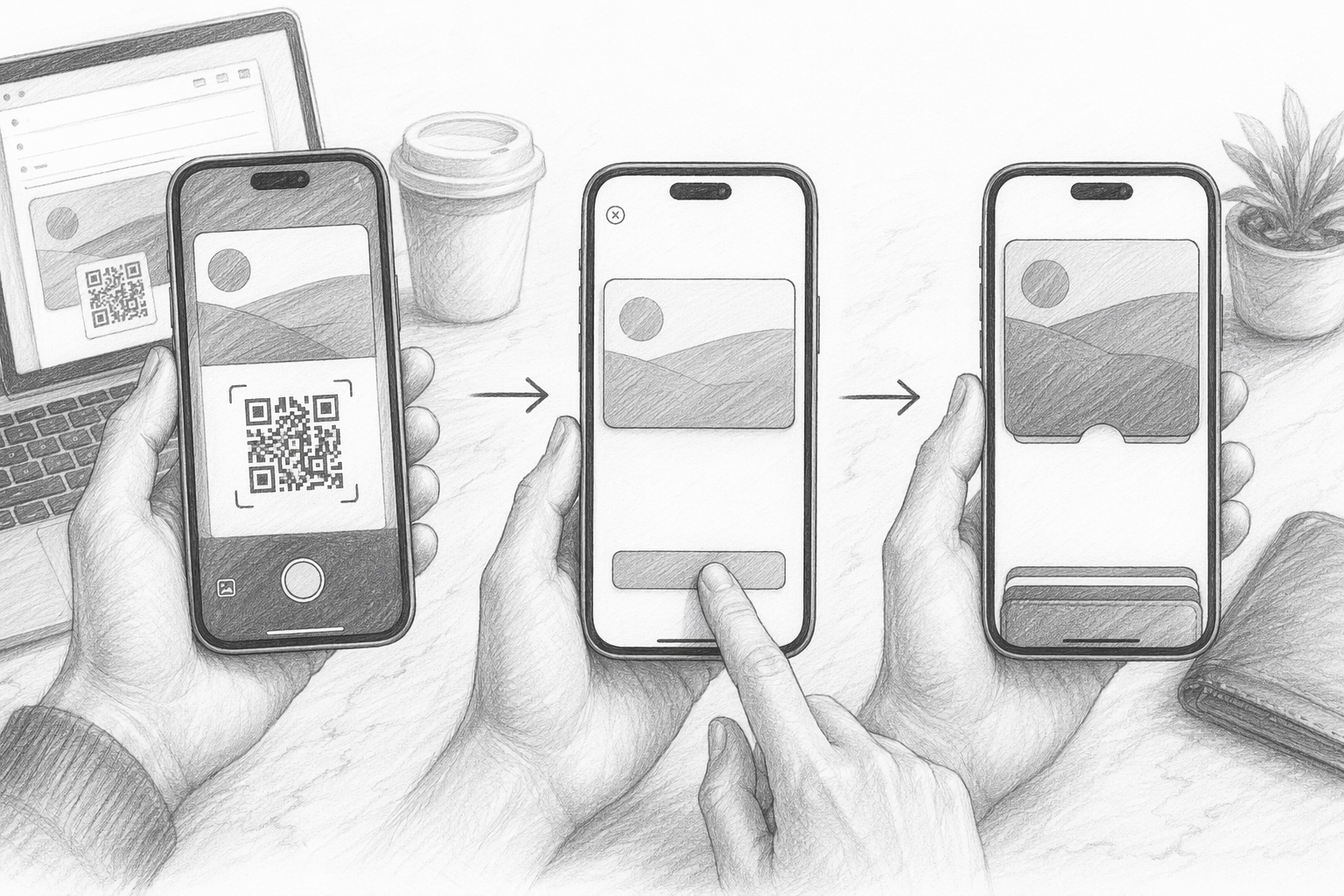
Finish the setup on the next screen. Tap Add in the top-right corner if Apple shows it. Apple also notes that the pass may sync to a paired Apple Watch after you save it in the iPhone Wallet guide. Before you close the screen, confirm:
At checkout, open the pass and present it before you pay. You can double-click the side button, choose the loyalty card, and scan or tap your iPhone at the reader if the store supports it. In some stores, Wallet shows the loyalty card first, then switches to your payment card. If you run a business, this is why wallet-native cards from platforms like OneCup help - customers can save and use them in seconds, with no app download.
Start with the link, email, text, or QR code from the business. If the brand supports Google Wallet, tap Add to Google Wallet and follow the prompt. Google says loyalty cards can also be added inside the app by tapping Add to Wallet and choosing Loyalty card or by opening a supported issuer link on your phone in Google Wallet Help.
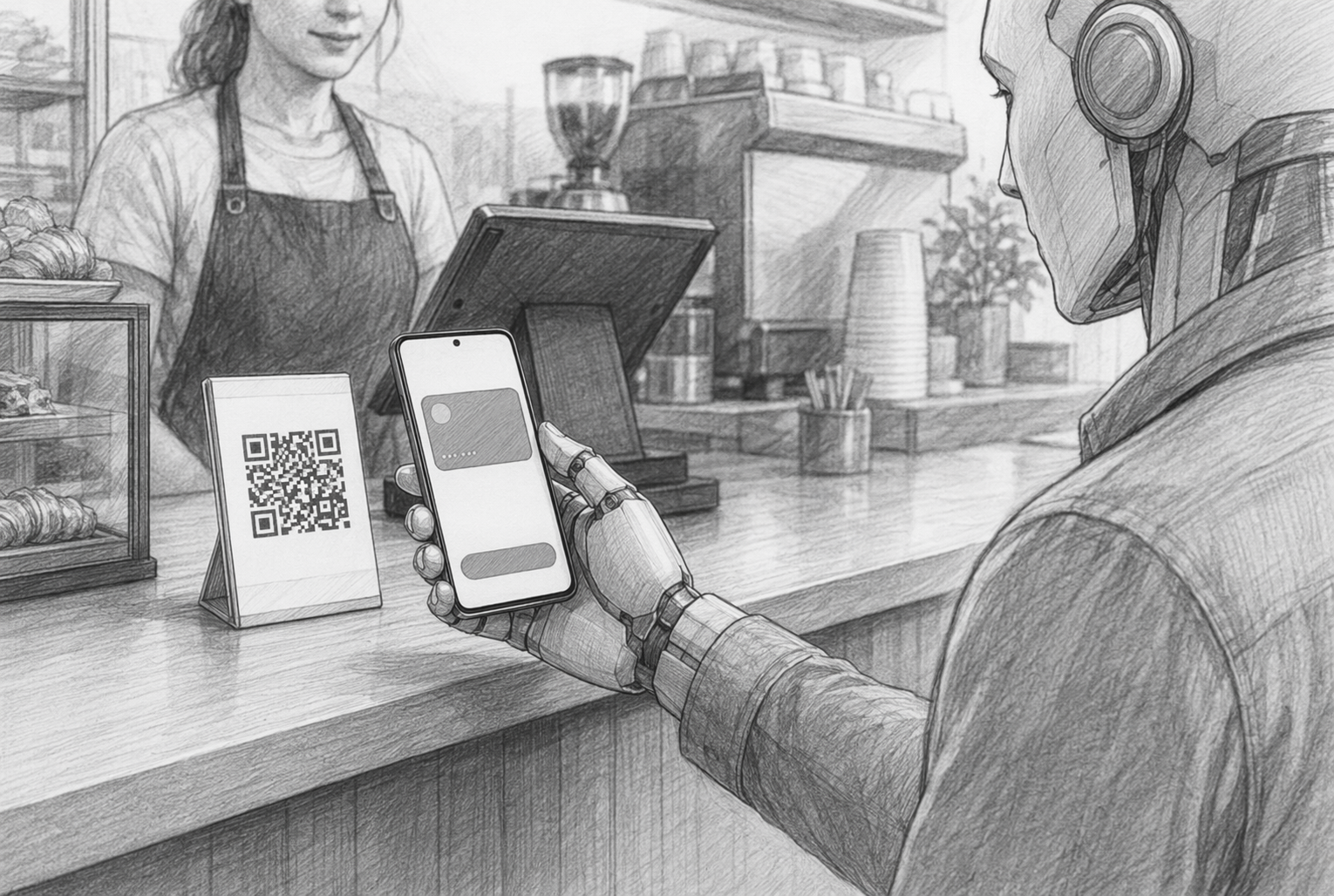
After you save it, open Google Wallet and check that the card shows in your passes. Tap it once to make sure the barcode or QR code loads clearly for checkout. If the business does not offer a direct Wallet button, Google also lets you save some barcode or QR-based passes from a photo inside the app using this Wallet help page.
If the card does not appear, update Google Wallet, reopen the pass link, and try again.
Google Wallet is often the better pick if you use Android every day and want fast access at checkout. It also works well for businesses issuing wallet-native loyalty cards through web, email, or SMS, so customers can save in seconds without downloading an app.
Design the pass for fast enrollment, not app replacement. Keep the front clean. Show the brand, reward status, and one barcode or QR code. Skip extra fields that slow setup. Apple says loyalty passes work well alongside an app, but they also work for people who never download one, and passes can be shared by SMS, email, NFC, and QR codes Apple Wallet loyalty passes. For most stores, the best pass includes:
If staff cannot explain the pass in one sentence, the design is too busy.
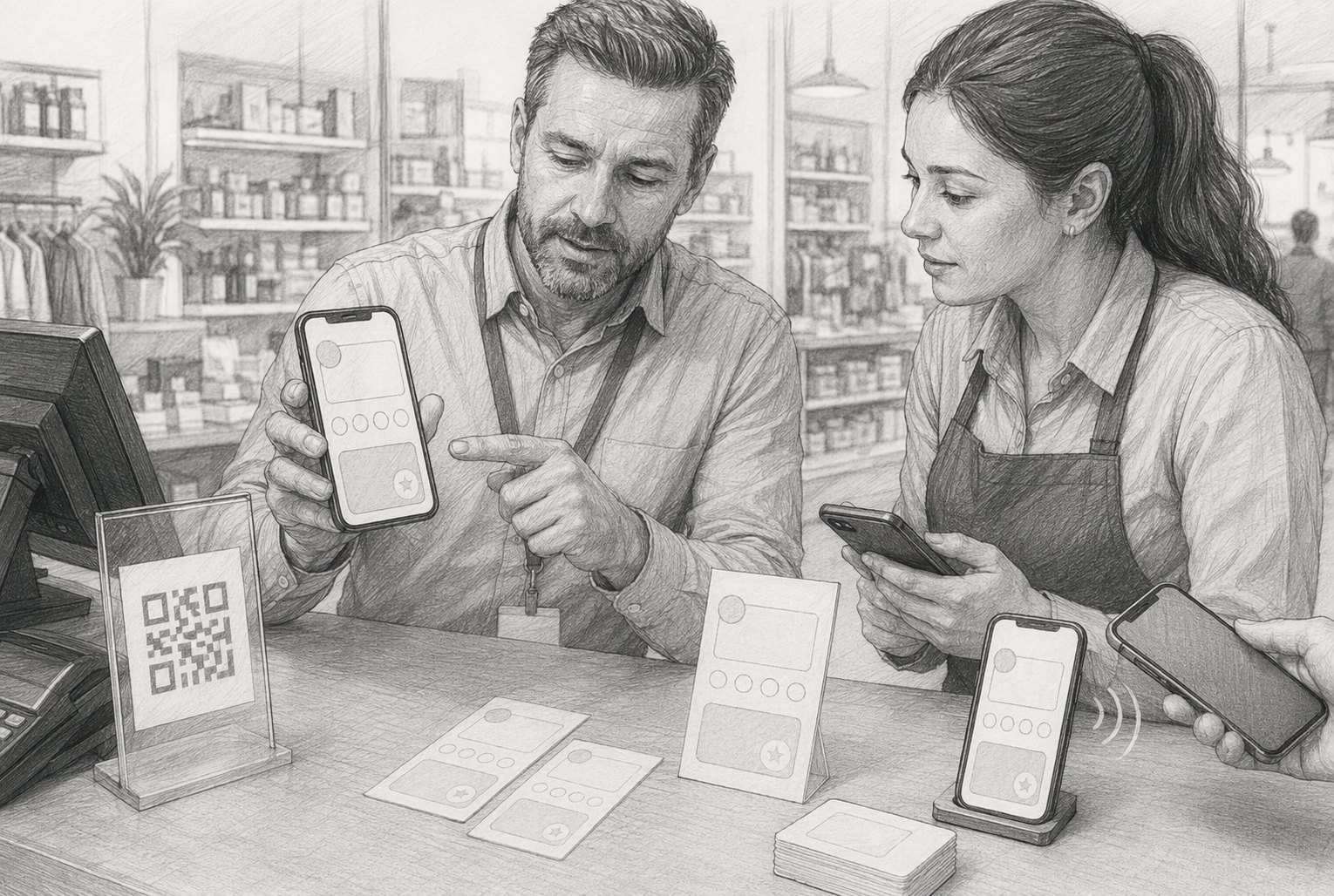
Use QR code distribution across in-store and digital touchpoints. Put one code anywhere customers already pause:
Google lets businesses issue loyalty passes through an Add to Google Wallet link that works on web, email, and SMS Google Wallet web, email, and SMS issuing. That matters because the fastest flow is simple: scan, tap, save.
Support both Apple Wallet and Google Wallet from one flow. Customers should not have to guess which button to use. Detect the device and send iPhone users to Apple Wallet and Android users to Google Wallet. If you use a platform like OneCup, build one signup path with two wallet outcomes, not two separate campaigns.
A simple setup table helps:
| Goal | Best setup |
|---|---|
| Fast add | Device-based wallet button |
| In-store signup | QR code at checkout |
| Follow-up saves | Email and SMS links |
| Fewer drop-offs | No app download required |
Make redemption easy at the point of sale
Train staff to ask for the wallet card before payment, not after. Customers should be able to tap or scan in one step. Apple says loyalty passes can appear automatically at checkout, and some stores support loyalty plus payment in one flow through Apple Wallet loyalty passes.
If redemption feels slow, customers stop using the card.
Use updates and notifications to drive repeat visits
Send updates people care about:
Google Wallet supports triggered messages and update alerts, but it caps notifying messages at 3 per 24 hours for a pass, according to Google Wallet push notification guidance. Keep messages short and tied to value.
Measure the impact across locations and campaigns
Track these numbers by store and campaign:
Use different QR sources at checkout, print, and SMS so you know what drives adds. For businesses using OneCup, this is where app-free wallet cards prove their value fast.
Why the Add button may not appear
If you do not see Add to Apple Wallet, the merchant may not support Wallet passes, as Apple Support explains. On Google Wallet, the save button can also fail if the linked class is not approved or the site setup is wrong.
Why the pass added but is hard to use at checkout
Open the pass before you reach the register. Turn on Automatic Selection in Apple Wallet so it appears faster at checkout, per Apple Support. If barcode scans fail, raise screen brightness and ask staff to try another scanner.
What businesses should verify before launch
Test save links in major browsers, confirm the correct card saves, and make sure barcode scans work in store. Google’s pre-launch testing guide also says to verify approved classes, filled required fields, and live checkout scanning.
Want customers to save your loyalty card in seconds, without an app? OneCup helps businesses launch Apple Wallet and Google Wallet loyalty cards fast with QR-based signup, simple rewards, and easy scaling. Start with OneCup and make saving, scanning, and repeat visits easier.
Open the card link or scan the business QR code on your iPhone. Tap Add to Apple Wallet, review the pass, then tap Add. If it does not open, ask the business for a direct wallet link.
Open the card link on your Android phone or scan the QR code. Tap Add to Google Wallet, confirm your Google account, and save it. If nothing happens, update Google Wallet and try the link again.
Yes. Many businesses issue wallet passes that save straight to Apple Wallet. You do not need the brand's app if they support wallet-native cards. The card lives in Wallet and can update points, offers, or stamps.
Use a platform that creates wallet-native passes for both systems. OneCup does this well because customers can scan a QR code and save the card fast, with no app download. Set up branding, rewards rules, and update fields.
They work in the same wallet apps, but they are not the same thing. Apple Pay and Google Pay handle payments. Loyalty cards store rewards, points, stamps, barcodes, and offers that staff can scan at checkout.
Adding a loyalty card to Apple Wallet or Google Wallet is usually simple if the brand supports wallet passes. On iPhone, you can add passes from a website, app, email, or QR code, according to Apple Support. On Android, Google says loyalty cards can be added in the app, from partner sites, and in some cases from Gmail or even a photo of the barcode, based on Google Wallet Help.
For businesses, the big lesson is clear:
The easier the save flow, the more customers will actually use the card.
OneCup LLC
651 N BROAD ST - SUITE 201
MIDDLETOWN DE 19709
United States
Whatsapp : +18023003737

.svg)

.svg)